
Free Digital Planner You Can Fill In on Screen and Print

A free digital planner is a planning page you fill in on a screen instead of with a pen: you type your priorities, appointments and to-dos, tick things off, and keep it on your phone, tablet or laptop. The one on this page is a single weekly sheet that works that way. You can type straight into every line, tick the boxes, then print it or download a blank PDF if you want to write by hand.
Top three this week
Appointments and deadlines
To do
Errands and calls
Meals and home
Waiting on / follow up
Money and bills
Notes and wins
Type on screen, then print. Carry unfinished items over to next week.
Free for personal, classroom and office use. Your entries are included in the print, PDF and PNG. Prints on US Letter and fits A4.
Black and White Free Digital Planner
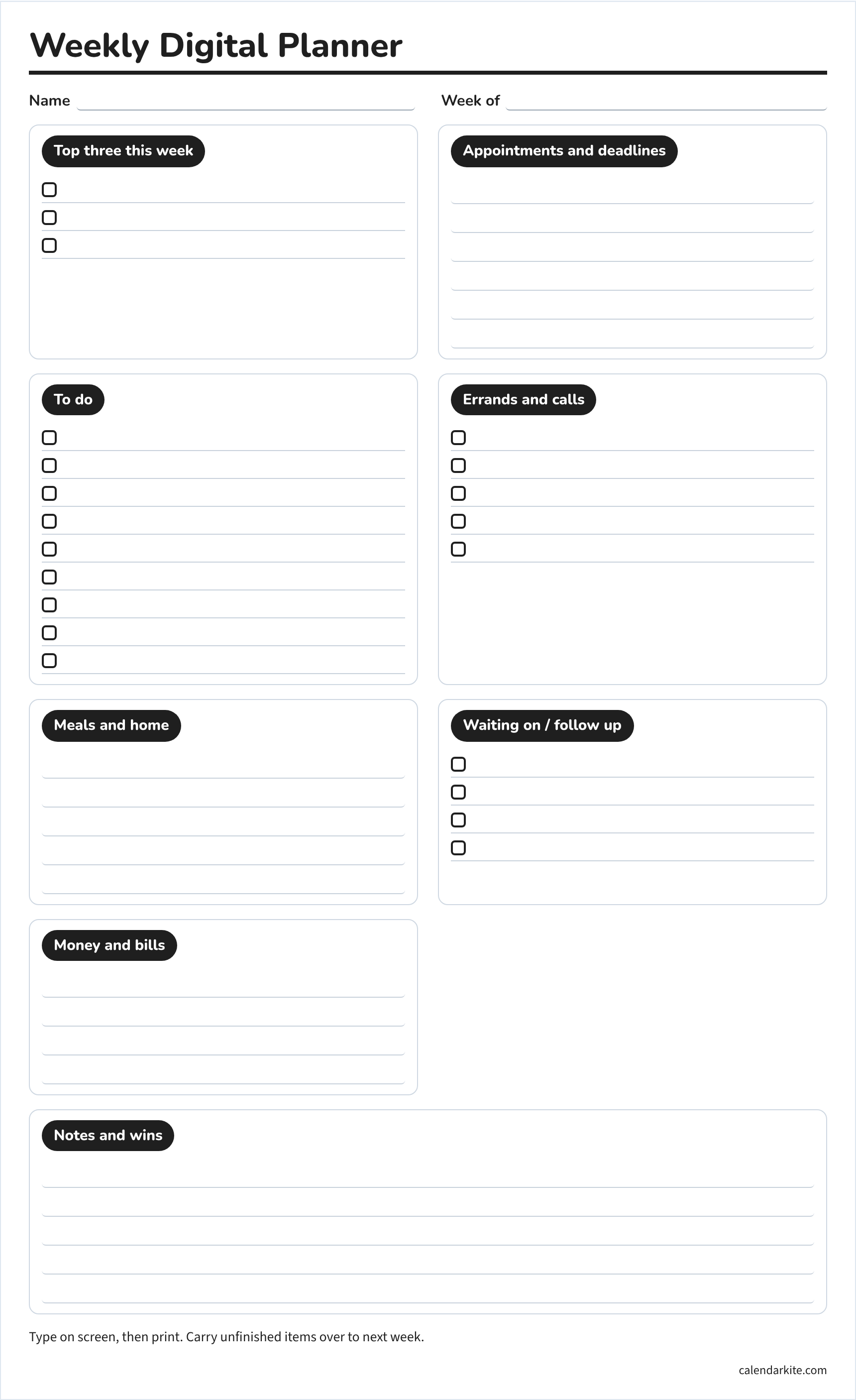
This is the one I suggest if you print at home and want to save ink, like a student mapping out a week of classes. After ten years in offices, I know plain black lines survive a photocopier best.
Pink Digital Planner Free Download
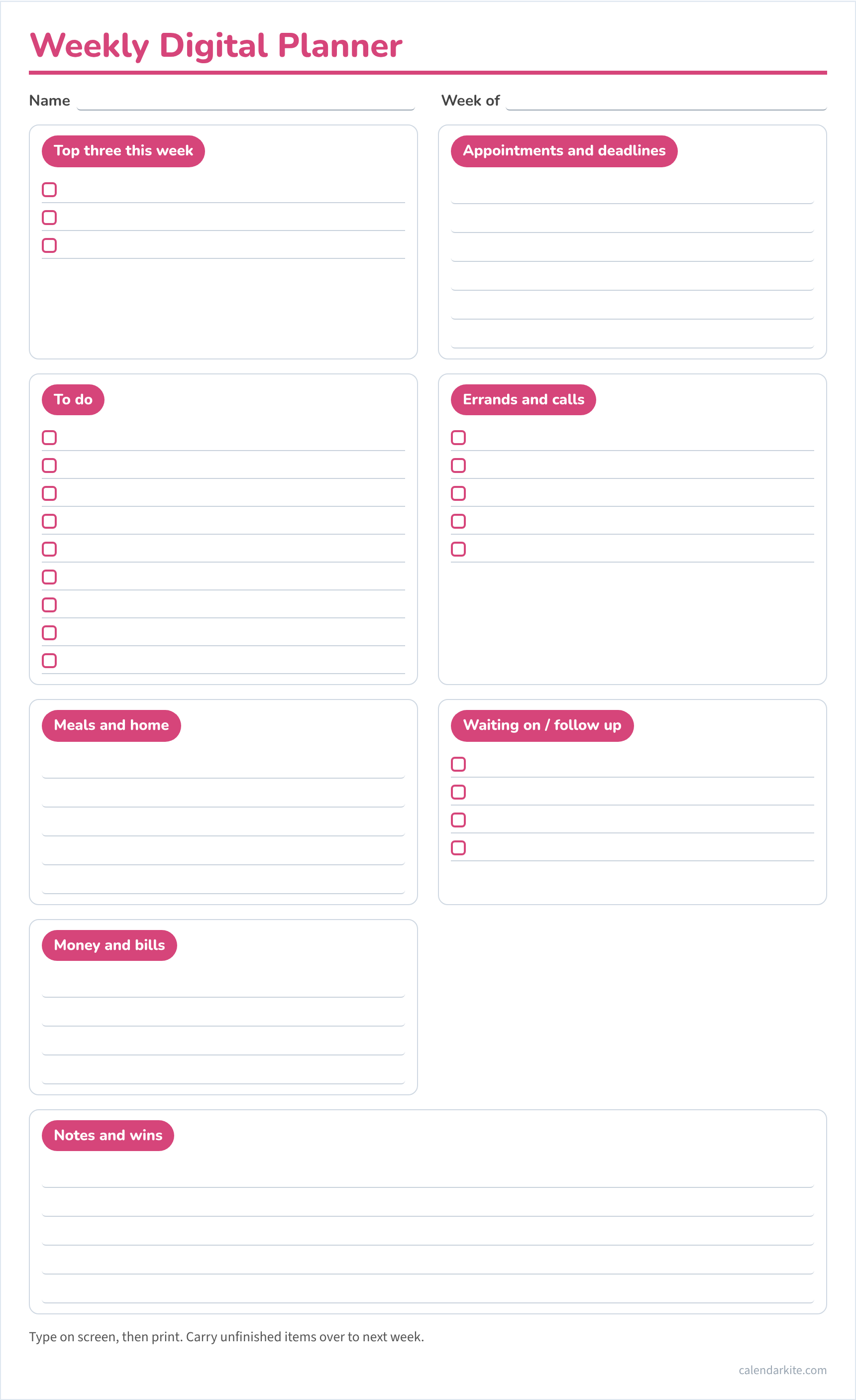
A soft pink look suits anyone who wants a friendly daily planner for work or school, and it's lovely for color-coding appointments with a pen. I test-print every page on my home inkjet, and this pink stays gentle rather than blotchy.
Sage Green Digital Planner Free
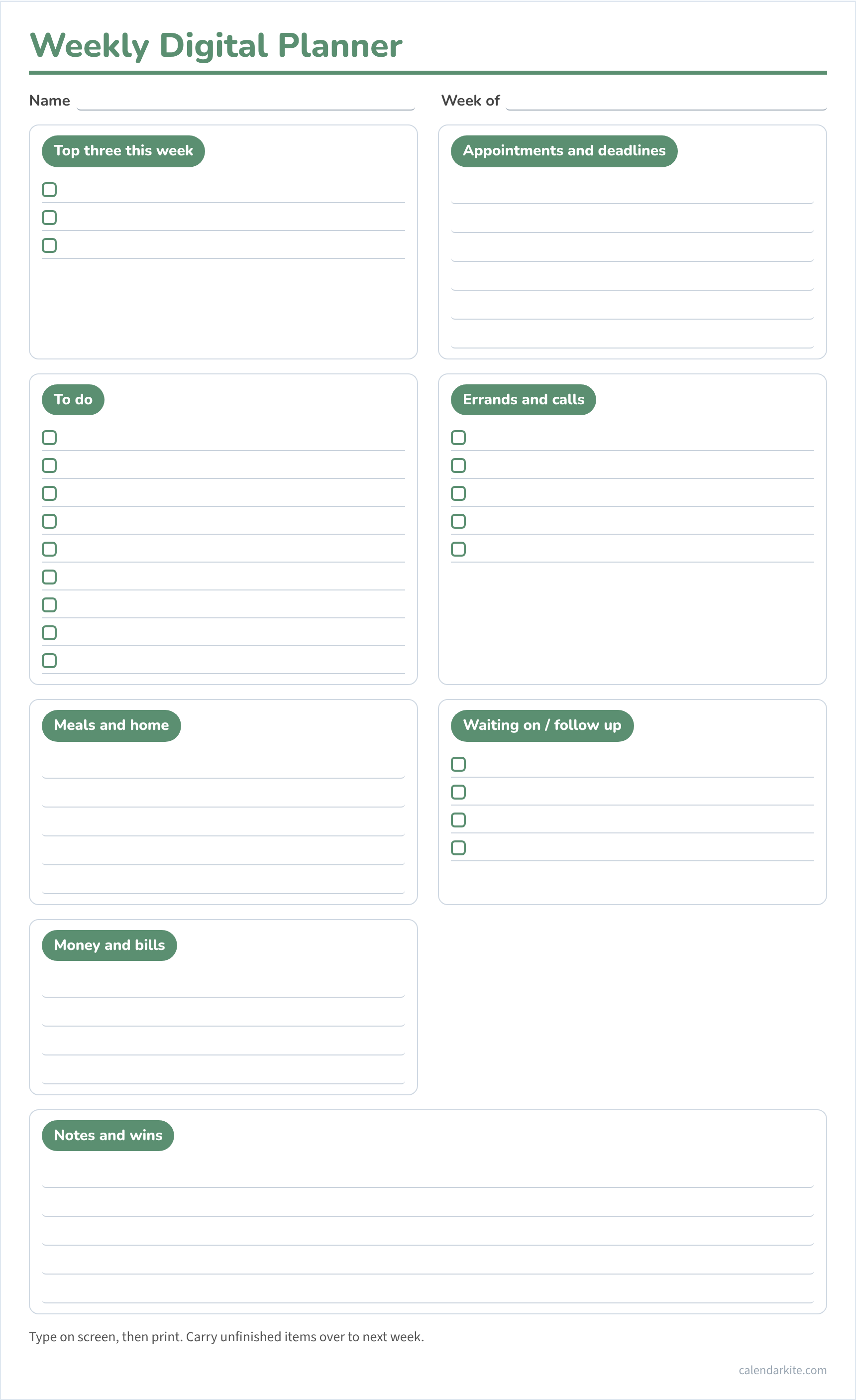
Sage green works well for a calm weekly setup, say for a freelancer balancing client deadlines with errands. I keep a planner on my kitchen counter, and a muted color like this is easy to look at every morning.
Lavender Digital Planner Free Printable
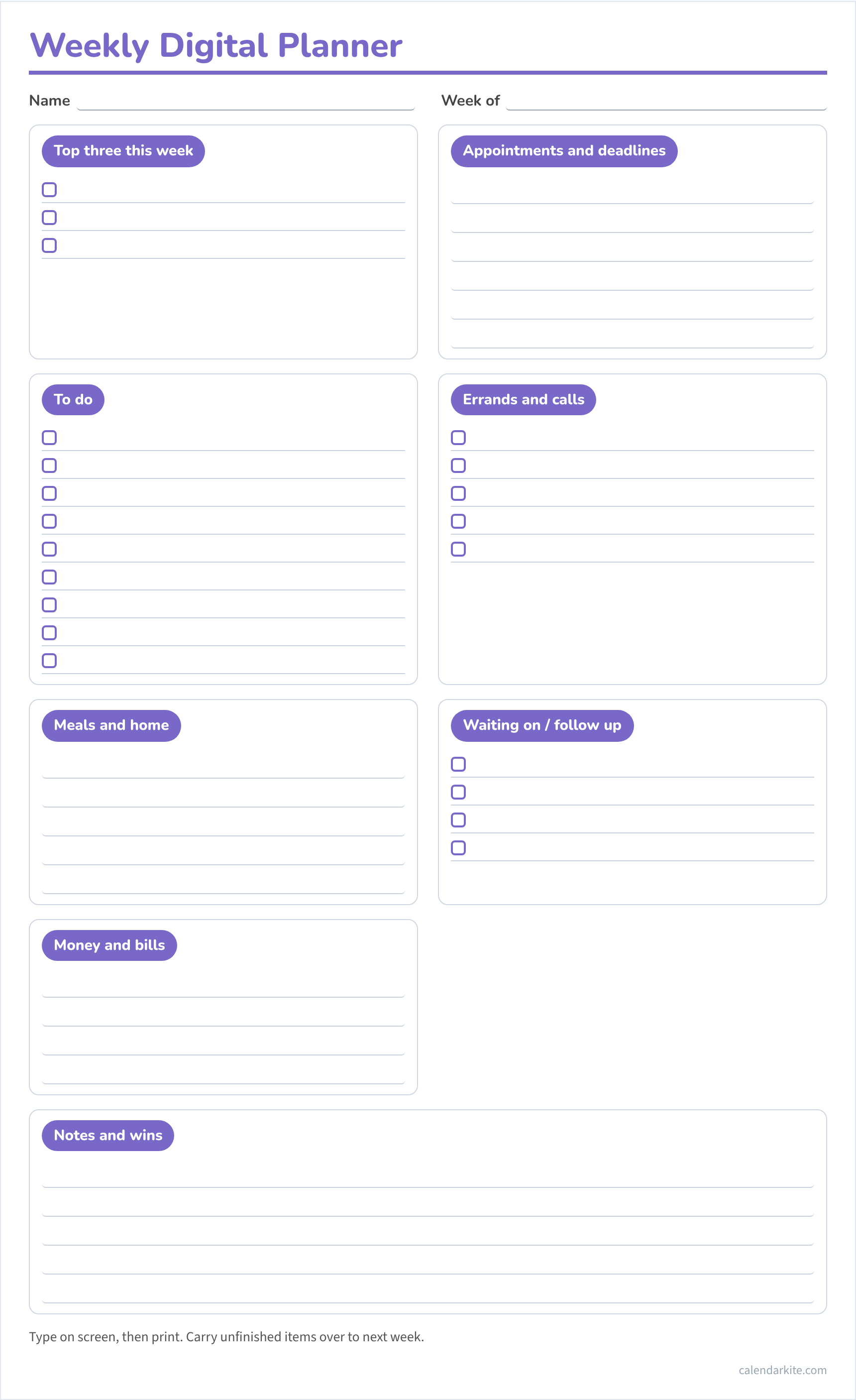
Lavender suits anyone who likes a little color but still wants room to write, such as a busy parent tracking school pickups. Use it to block out appointments, activities and a few evening commitments each week.
Cute Free Digital Planner
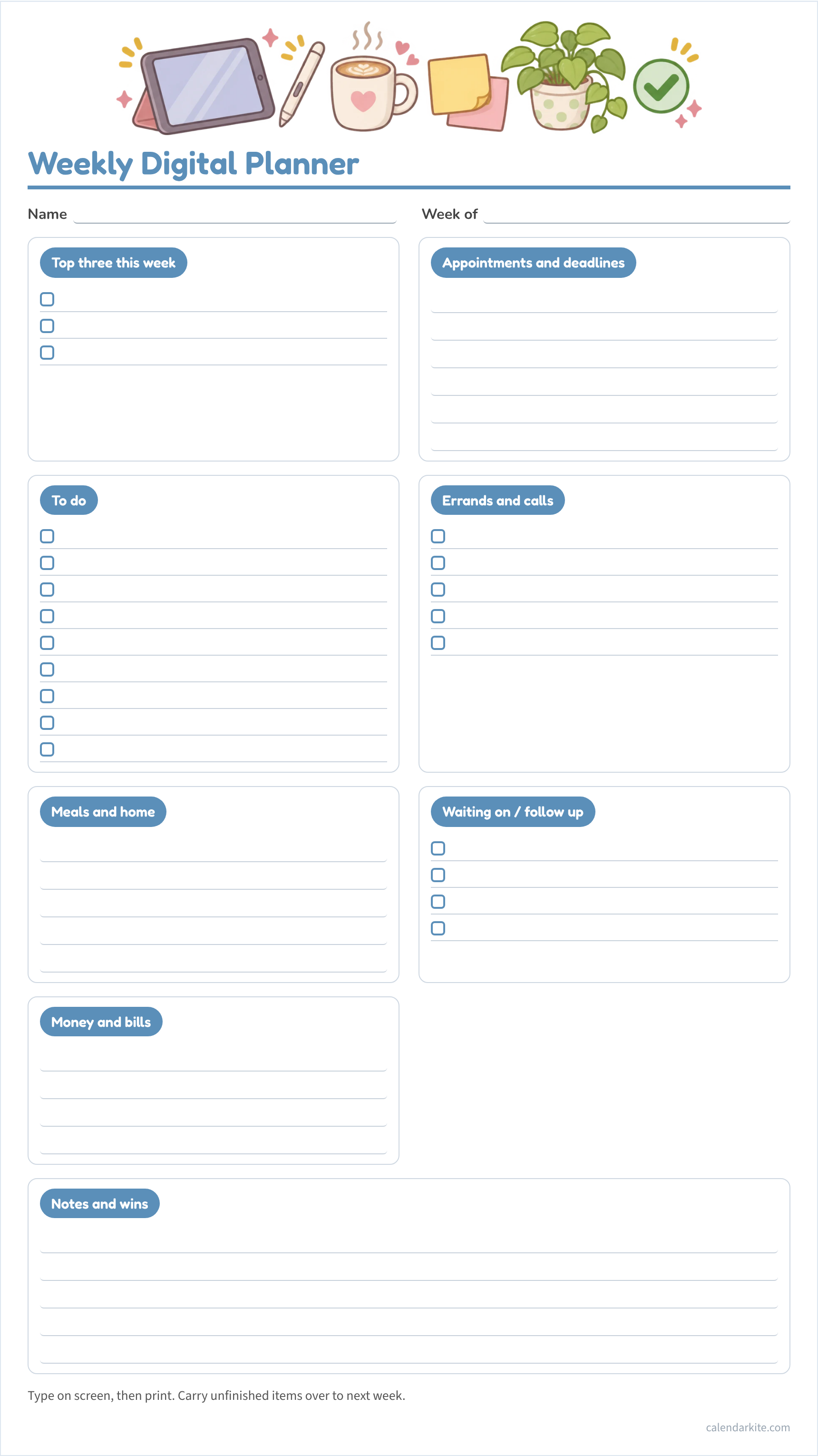
The pastel blue and hand-drawn style illustrations at the top make this a cheerful pick for students or anyone who finds planning a chore. Use it to list weekly goals and tick off small wins.
Floral Digital Planner Free Printable
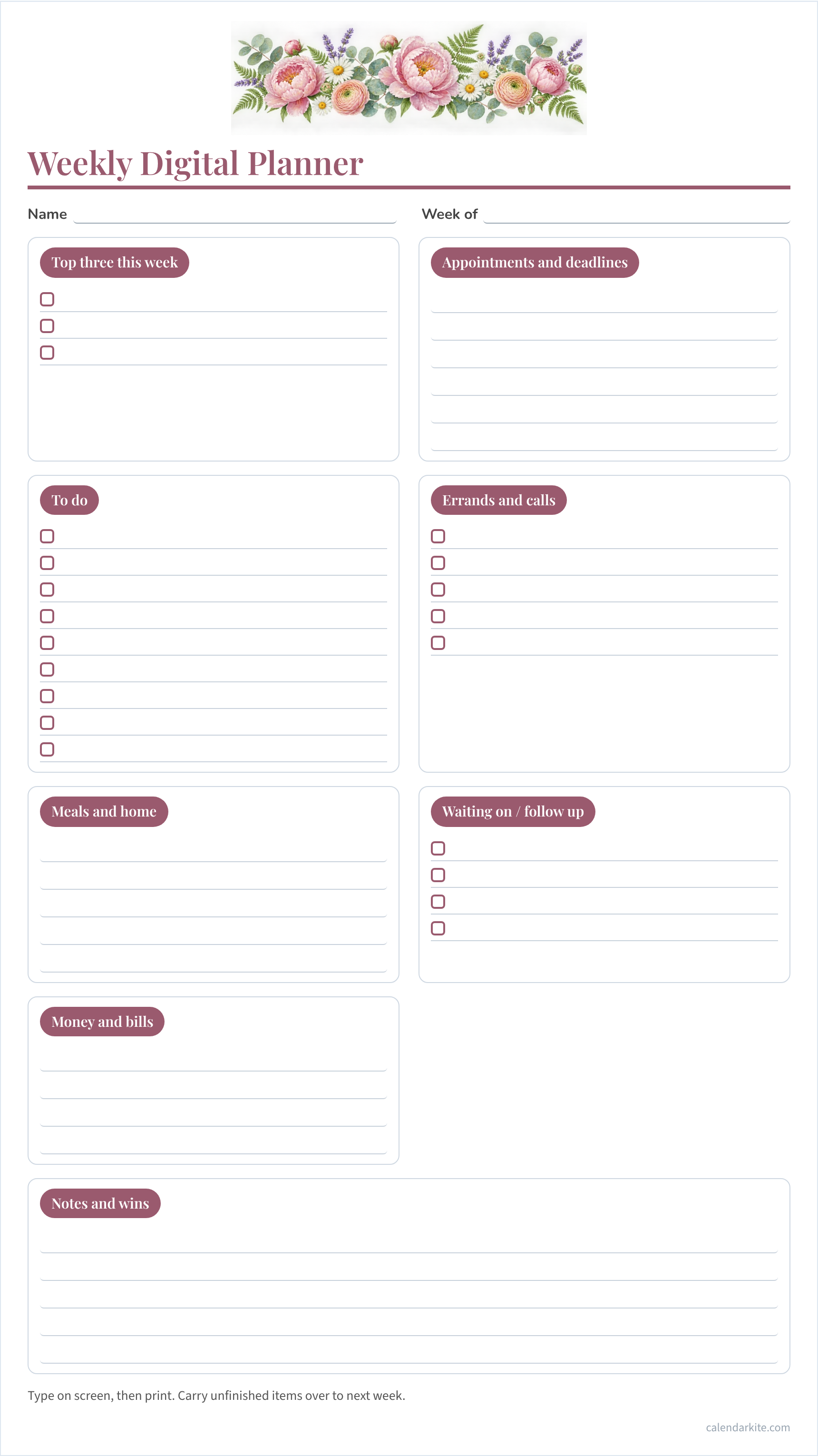
Watercolor flowers and elegant serif headings make this ideal for someone who loves stationery or wants a pretty gift for a friend. Use it to plan an event, a garden season, or a month of thank-you notes.
Minimalist Free Digital Planner
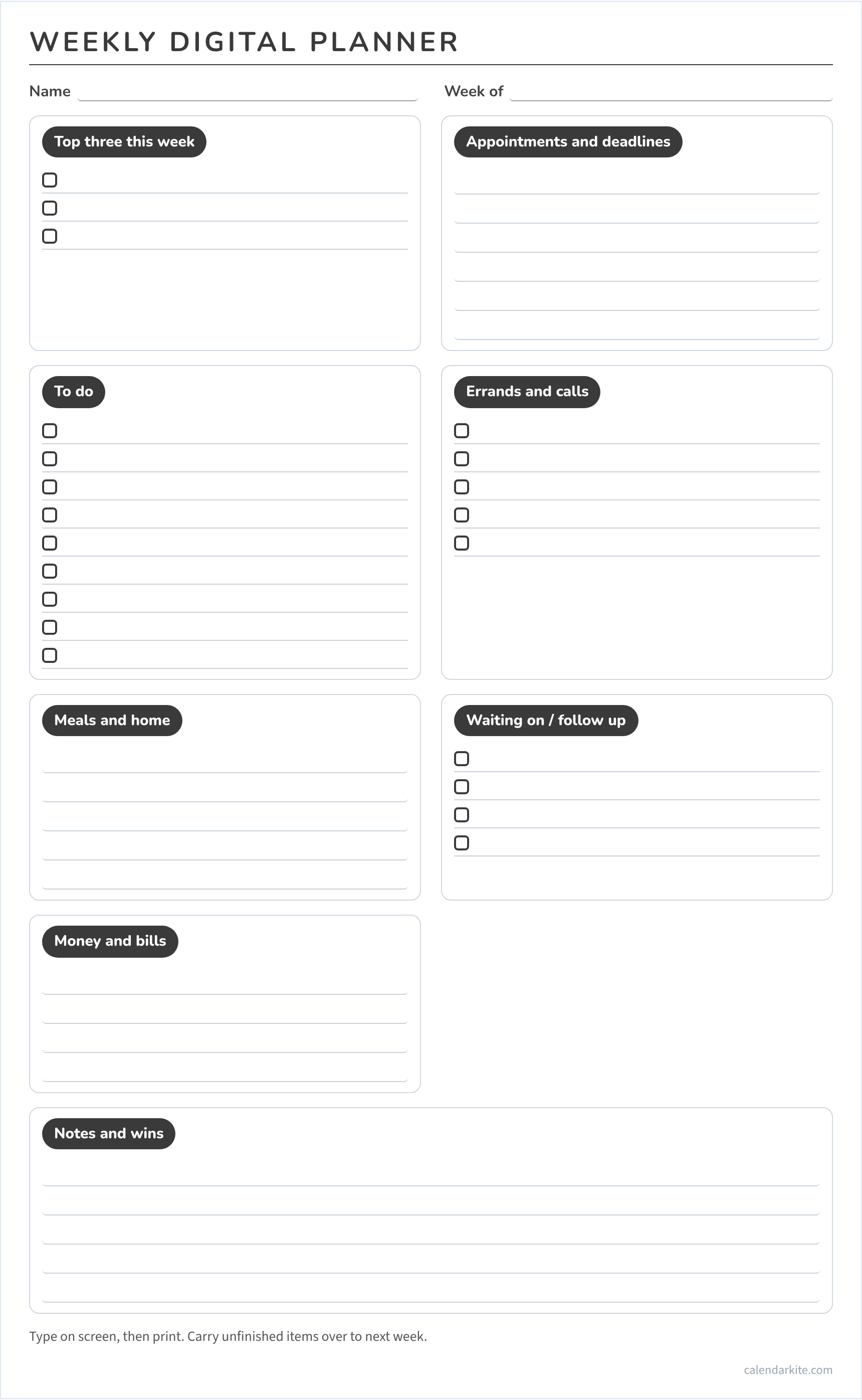
Thin gray lines and no color suit people who want a distraction-free planner for focused days at a desk. In my office years I saw crowded layouts get ignored, so I kept this one sparse.
Aesthetic Free Digital Planner
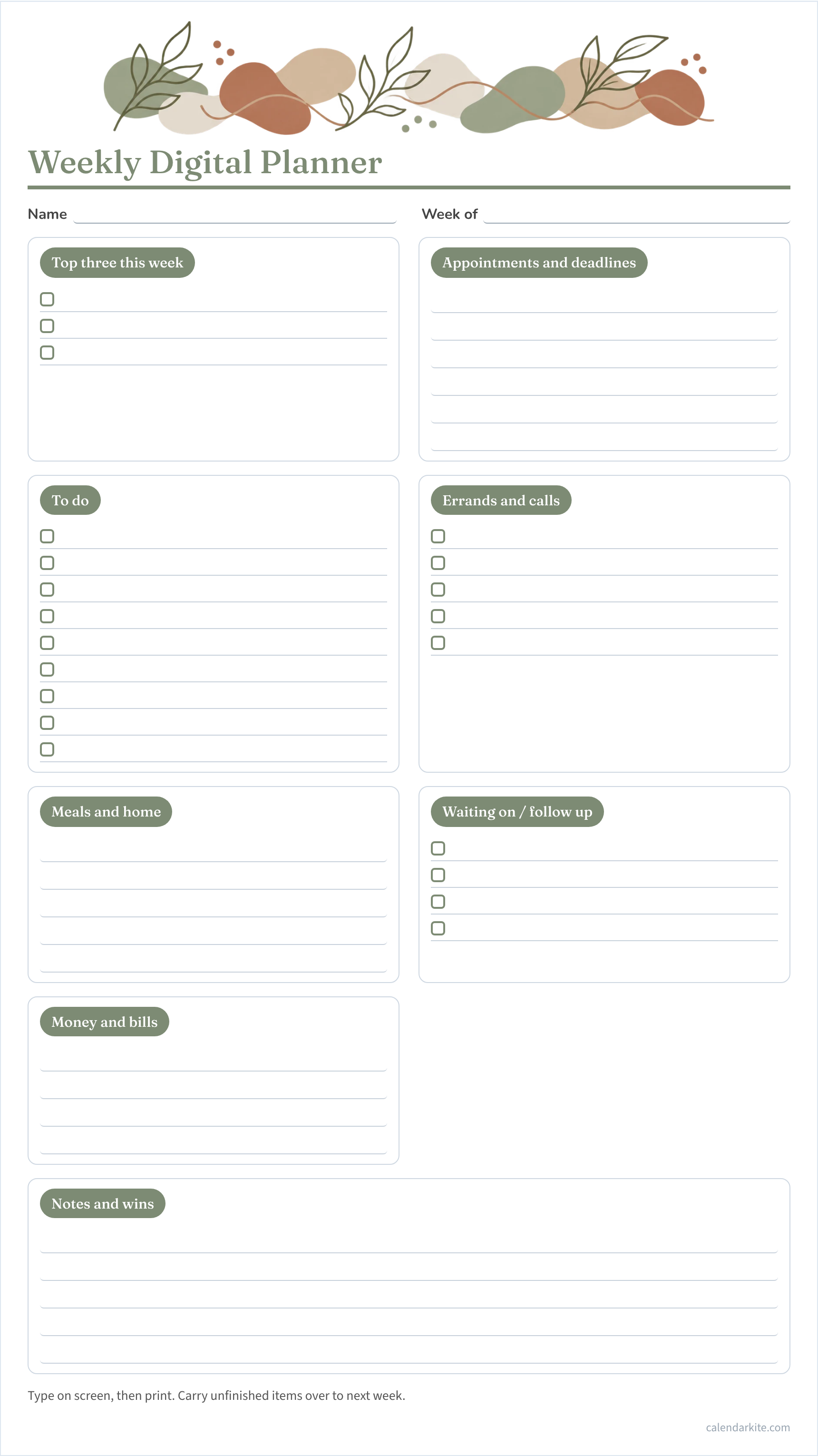
Muted sand, sage and terracotta tones with soft line-art leaves suit anyone building a calm, photogenic planning routine. Use it for a Sunday reset where you set weekly priorities and a few small habits.
Vintage Digital Planner Free Printable
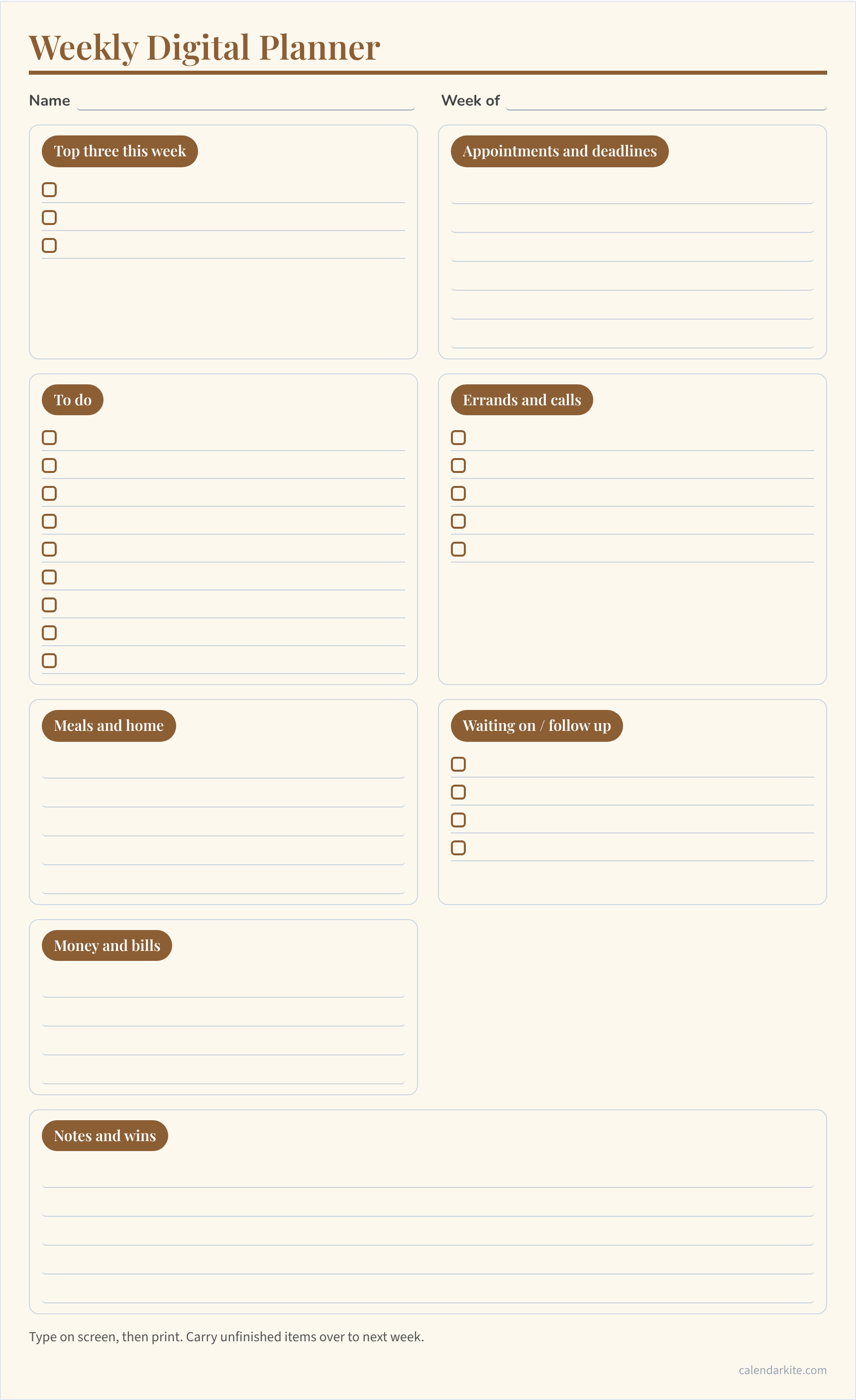
Cream paper and brown serif headings suit people who love an old-fashioned journal feel, especially for slower, handwritten planning. Use it to track appointments, recipes you want to try, or letters you've been meaning to write.
Bold Modern Free Digital Planner
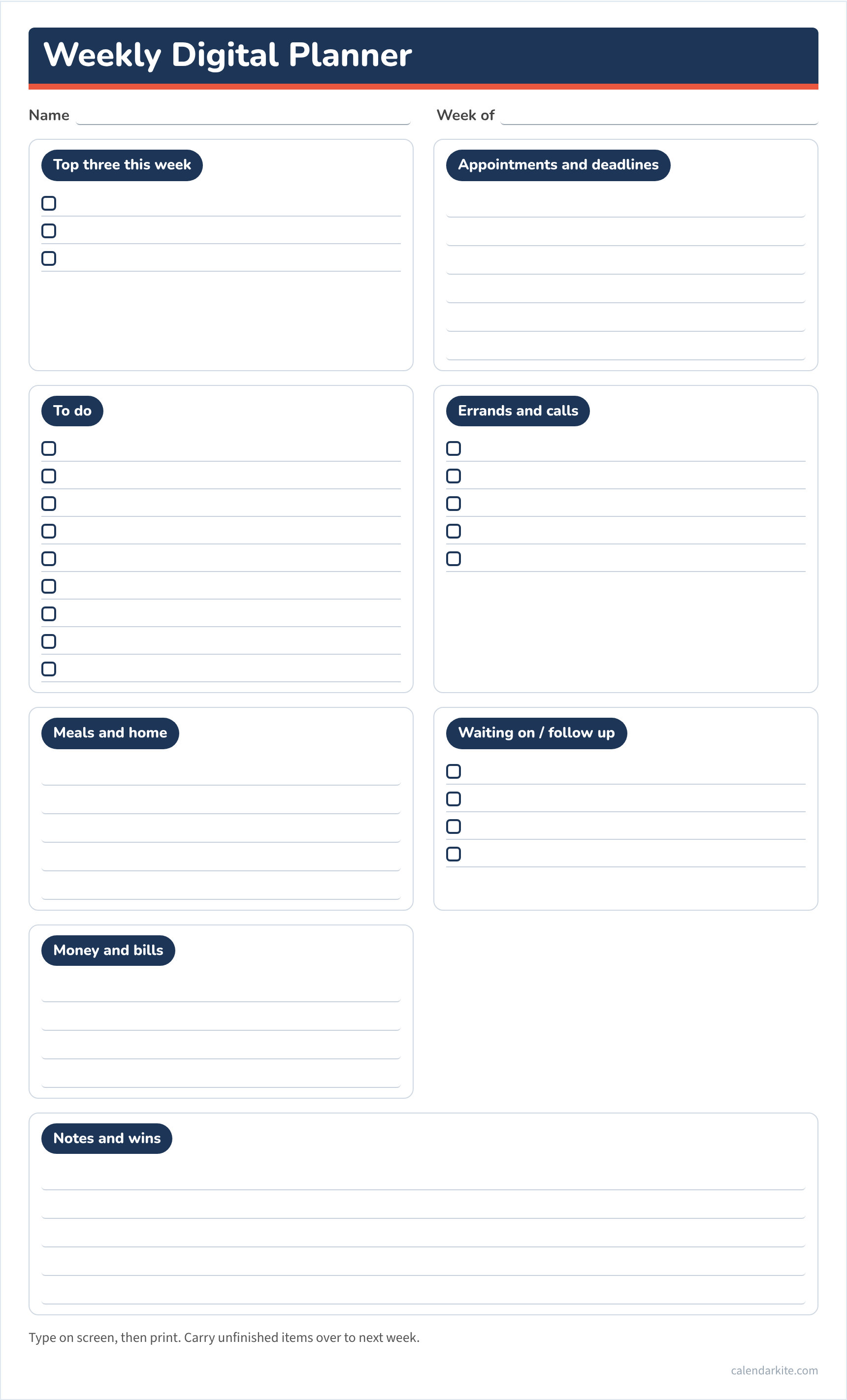
A navy header band with a coral accent suits professionals who want a crisp planner for meetings and deadlines. A mistake I often see is dates hidden in tiny type, so I made the header contrast strong.
I keep a paper calendar on the fridge and a planner on the kitchen counter, so I never meant to build a screen-based version. Then I noticed how often I wanted to plan the week while sitting at a laptop, with the school email open in another tab. This sheet came out of that: a layout that is quick to type into and still prints cleanly on a plain home inkjet.
What a free digital planner actually is
The phrase covers three different things, and it helps to know which one you want. The first is a PDF planner with clickable tabs, designed for a tablet and a stylus. The second is a planner app or calendar, such as a task manager or a calendar with reminders. The third is a fill-in page that works in the browser, which is what you have here.
PDF planners rely on links to jump between months, weeks and notes, because you cannot flip pages the way you do with paper. Those templates include hyperlinks for moving between pages, which matters since you cannot turn the pages as you would in a paper planner. They are lovely if you own a tablet and enjoy handwriting on glass, but they are large files with many pages, and most of those pages go unused.
A browser fill-in page sits at the other end. It is one sheet, it opens in a second, and it asks you to decide only what matters this week. I find that a smaller tool gets used more often than a clever one.
The planner on this page
The sheet is built around one week. At the top are two fields: your name and the week you are planning. Below them are eight boxes: top three for the week, appointments and deadlines, a main to-do list, errands and calls, meals and home, waiting on and follow up, money and bills, and a wide box for notes and wins.
Several boxes have checkbox lines, so you can tick items off on screen and again with a pen after printing. I kept the sections few on purpose. Most planners I have tested try to give every part of life its own page, and the result is that nobody fills in half of them.
Everything on the sheet fits one US Letter page. I check each printable against the real calendar and test-print it on my home inkjet on both US Letter and A4, and this layout was adjusted twice because the bottom box lost its last line on A4. It now has a margin that survives scaling.
How to fill it in on screen
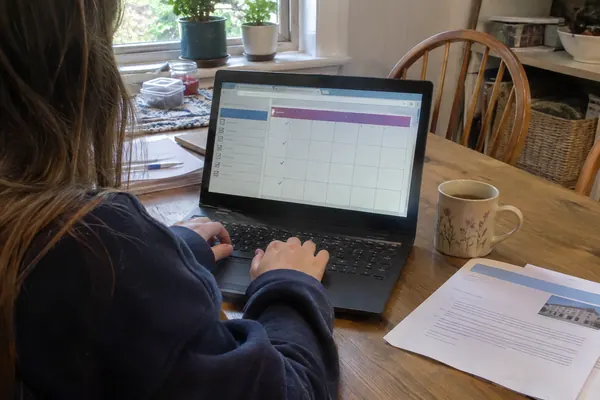
Click or tap any line and type. The header fields, every list line and every note line accept text, and the checkbox lines can be ticked with a click or tap. You can also edit the items in a checklist box, so if a line says one thing and you need another, you simply change it.
Start with the week field, because it anchors everything else. Type the date of the Monday (or Sunday, whichever your week starts on), then fill in the boxes in the order below. The order matters more than it looks.
- Write the appointments and deadlines first, since those are fixed.
- Add the top three, the things that would make the week a success.
- Fill the to-do list with what supports those three.
- Add errands, calls, meals and money last.
Try this: Before you type anything else, fill in only “Appointments and deadlines” and “Top three this week”. Look at the page for ten seconds. If the top three do not fit around the fixed items, cut one before the week starts, not on Thursday.
What goes in each box
Top three this week is the smallest box and the most useful. Write outcomes, not tasks: “Taxes folder ready” is better than “do paperwork”. If you finish all three, the week was a good one, whatever else happened.
Appointments and deadlines holds anything with a date or a time. I add the day and time at the start of the line (Tue 4:15, dentist) so the box reads like a short agenda. Work deadlines, school forms and bill due dates belong here too.
The To do box is for everything else that has to happen. Nine lines is deliberate. When I worked in an office, the people who kept a forty-item list rarely finished it, and the people who kept a short list and refilled it did. If the list overflows, ask what can wait, and move that item to next week’s page.
Errands and calls give you a place for the small jobs that otherwise sit in your head: the pharmacy, the school office, the vet. Meals and home is for a rough dinner plan, a laundry day or a repair you keep forgetting. If meals are a weekly struggle, the printable weekly meal planner gives you more room.
Waiting on and follow up is the box people skip and then miss. It holds anything you have asked someone else for: a reply, a delivery, a signed form. Writing the date you asked next to it makes it obvious when to nudge. Money and bills is for due dates and amounts only, and notes and wins is for anything else, including what went well.
Who this planner suits
It suits anyone who wants one clear view of the week without setting up a system. Parents juggling school pickups and appointments will find the shared “fixed items first” approach quick. Students can use the to-do box for assignments, though a dedicated college assignment tracker is better once the semester fills up.
It also works well for people who work at a computer most of the day. A browser tab you can open between tasks is easier to keep up than a notebook buried under papers. Freelancers and remote workers often like the waiting on box, because chasing replies is a large part of the job.
It is a poorer fit if you need alerts. A page does not buzz your phone at 3:40 for a school pickup. For timed reminders, keep a calendar app for those and use this sheet for the plan around them.
Digital planner, app or PDF: choosing the right one
If you want to handwrite on a tablet, download a hyperlinked PDF planner and open it in an app such as GoodNotes or Notability. Free planners are commonly built for note-taking apps like GoodNotes, Notability and similar tools. Expect many pages, and expect to delete most of them.
If you want reminders and syncing across devices, use a calendar app for events and a task manager for to-dos. The free versions of the major ones cover most home needs. The trade-off is that apps make it easy to add things and hard to see the whole week at a glance.
If you want a fast, low-effort weekly plan, use a fill-in page like this one. It has no sync, no notifications and no learning curve, which is exactly why it suits a busy week. My own setup mixes these: a calendar app for timed things, paper on the fridge for the family, and this kind of sheet for my own priorities.
Using it on a phone, tablet or laptop
A laptop is the most comfortable place to type into the whole sheet. A full keyboard makes it quick to enter a week’s worth of items, and a wide screen shows every box at once. On a phone, the sheet scales down, so you will likely scroll between boxes, but ticking items off is easy with a thumb.
On a tablet with a keyboard, the experience is close to a laptop. On a tablet without one, tap into a line and use the on-screen keyboard, or use handwriting-to-text if your device offers it. If you would rather write with a stylus on the file itself, download the blank PDF and open it in an annotation app.
Try this: Open the page on your phone and add your three biggest items for tomorrow only. Check it again tomorrow morning. If it takes under a minute and you actually look at it, you have found your routine.
Where your entries are saved
What you type is saved in your browser on the device you are using. That means you can close the tab, come back later on the same browser and find your week as you left it. There is no account, no login and nothing uploaded to a server.
The flip side is that the entries stay on that device. If you clear your browser data, use a private window, or open the page on another device, the sheet will be blank. I learned the equivalent lesson in the office: a plan that lives in only one place is a plan that gets lost.
So if the week matters, print the page, or take a screenshot. A habit I recommend is printing on Monday morning even if you mostly work on screen. The printed copy is your backup, and it is also the one you can stick next to the kettle or the fridge.
Printing it well
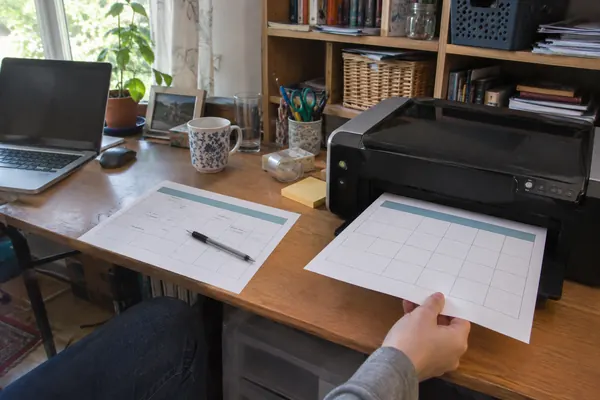
Print on US Letter at 100 percent, or on A4 with fit-to-page selected. Portrait orientation is correct. Turn off “headers and footers” in your print settings so the web address does not appear on the page, and use black and white or grayscale to save ink, since the sheet does not rely on color.
If you plan to hole-punch the page for a binder, print at 100 percent and check the left margin before you commit. Plain 20 lb paper is fine, but if you use a gel pen, a slightly heavier paper reduces bleed-through. Doing one test print before a batch of twelve weeks saves paper.
The blank PDF is the right choice if you want to handwrite everything, or if you want to print the sheet several weeks ahead. Print a stack, keep them in a folder, and you have a year of weekly pages for the cost of paper. For a plain month overview to sit beside them, the monthly planner fits well.
A ten-minute weekly routine
A planner only works if you use it on a rhythm. Mine is short. On Sunday evening, I sit down with the family calendar and write the appointments and deadlines. Then I add the top three, and fill the to-do box with whatever is left over from last week plus anything new.
During the week, I spend about two minutes each morning. I tick what got done, add anything that appeared overnight, and look at tomorrow’s fixed items so nothing surprises me. On Friday, I write one or two wins in the notes box. It is a small thing, but looking back at an actual list of what you did is calming.
Try this: Set a recurring calendar alert for Sunday at 7 p.m. titled “Plan the week.” Open the sheet, fill in the appointments box only, and stop. Do the rest on Monday. Starting small is how the habit sticks.
Variations to try
You can edit the checklist items, so the sheet can change shape depending on your week. For a work-heavy week, rename “Meals and home” to “Meetings prep” and use it for agendas. For a school week, change “Errands and calls” to “School and activities” and list forms, practices and uniform needs.
If you want a different level of detail, there are neighboring pages on this site. The weekly planner 2027 has a day-by-day layout for people who like to see Monday through Sunday in columns. The daily planner template gives one day a full page, which suits packed days and shift work.
You can also pair the sheet with a tracker. A habit tracker next to this planner lets you keep recurring things (water, walking, reading) out of your to-do list, which keeps the list short. I use that split at home because daily habits would otherwise fill half my to-do box every week.
Mistakes I see people make
The most common one is making the list too long. A to-do box with thirty items stops being a plan and turns into a worry list. If a task has been on the page for three weeks, either schedule it, break it into a smaller step, or decide it is not happening and delete it.
The second is skipping the fixed items. People write what they want to do and forget the dentist, the school concert and the car inspection, and then the week looks emptier than it is. Always start with the dated things.
The third is relying on a single copy. A browser-saved sheet is convenient, but treat it like a whiteboard rather than an archive. And the fourth is mixing too many tools: a paper planner, two apps and a sheet on the laptop. Pick one place for dated events, and use this page only for the weekly plan around them.
Pairing it with calendars and other sheets
A weekly page is easier to fill in when you can see the month. If you would like a month on paper to go with it, the editable calendar 2027 lets you type into the dates before printing, so you can copy the month’s appointments across to each weekly page.
If you like having everything in a single binder, the printable planner collection has other layouts that go with this one: lists, schedules and logs in a similar plain style. Keep the pages you use and discard the rest. A smaller set of sheets that you actually fill in beats a thick planner that you abandon in February.
Finally, there is no rule that says you must stay digital or stay on paper. Typing on Sunday and printing on Monday, then ticking with a pen all week, is a perfectly good system, and it is the one I use most often.
Getting started today
Open the sheet, type this week’s date, and fill in only the boxes you feel like filling in. An incomplete page that you use is better than a perfect one you never open. Next week, you will know which boxes you actually need, and you can rename or ignore the others.
If you find yourself wanting more room, move to a bigger layout. If you find yourself wanting fewer boxes, leave them blank without guilt. The point of any planner is to get the week out of your head and onto a page you trust, and this one is built to do that in about ten minutes.
Common questions
Is this free digital planner really free?
Yes. You can type into the sheet on this page, print it, or download a blank PDF without paying or creating an account. There is nothing to install.
Will my entries be saved if I close the page?
Your entries are saved in your own browser on the device you used, so they should be there when you come back. They are not sent to an account, so clearing your browser data or switching devices means starting fresh. Print the page or note the key items elsewhere if they matter.
Can I use this in GoodNotes or on an iPad?
You can fill the sheet in on an iPad in your browser with the keyboard. If you prefer handwriting, download the blank PDF and open it in any PDF or note-taking app that lets you write on a file.
What is the difference between a digital planner and a planner app?
A digital planner is usually a page or PDF you fill in, much like paper but on a screen. A planner app (a calendar or task manager) adds reminders, syncing and alerts. Many people use both: an app for timed events and a one-page planner for the week's priorities.
Does it print on A4 as well as US Letter?
Yes. It is laid out for US Letter, and on A4 you should choose the fit-to-page option in the print dialog. I test-print on both sizes, and nothing gets cut off when scaling is set to fit.
How often should I use a weekly digital planner?
Fill it in once at the start of the week, then spend about two minutes a day ticking things off and adding new items. A short weekly reset on Sunday evening or Monday morning is what keeps it useful.
More free planners
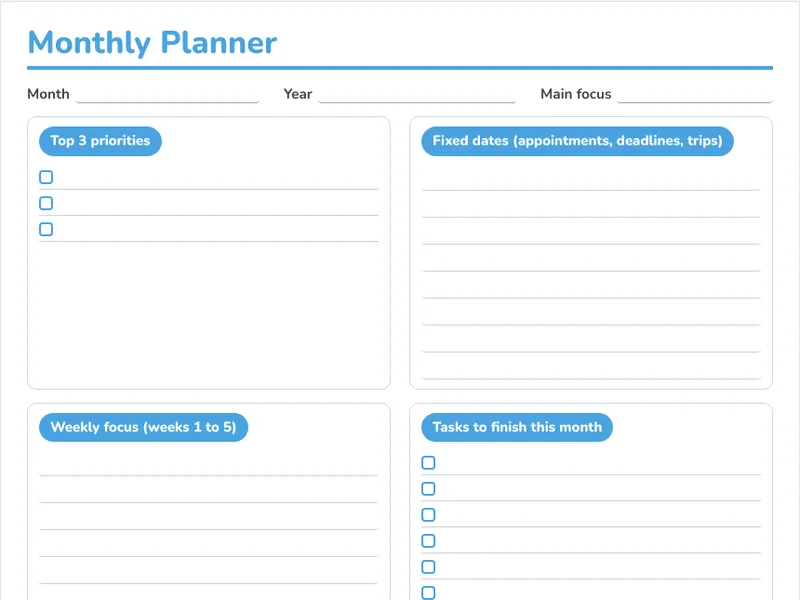 Monthly Planner: Free Printable One-Page Sheet
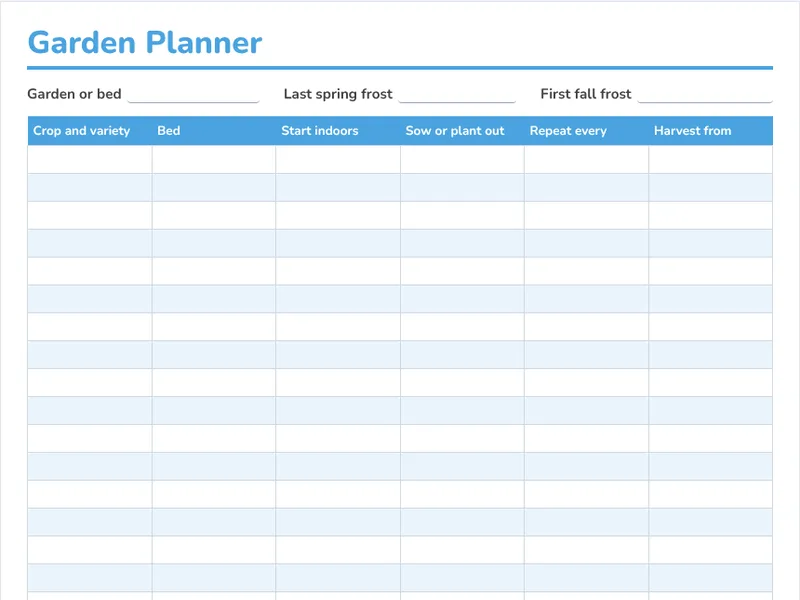 Garden Planner: Free Printable Planting Sheet
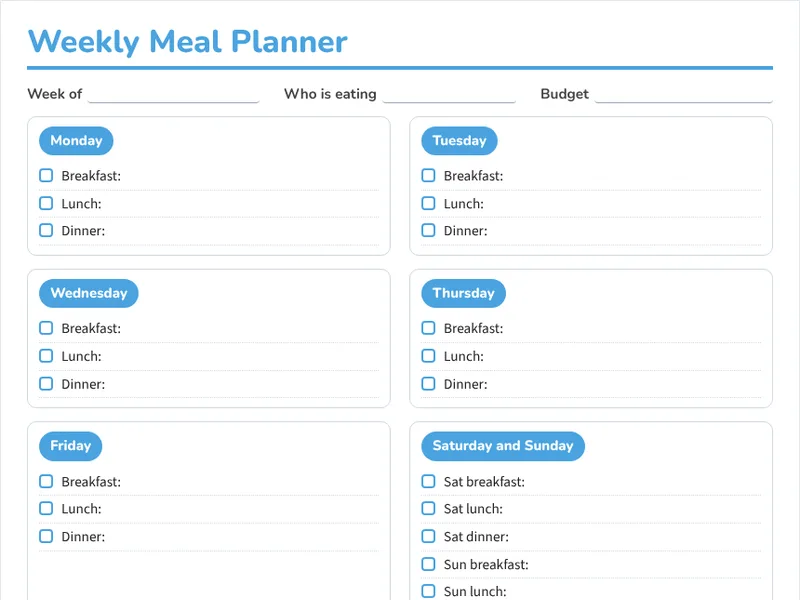 Printable Weekly Meal Planner
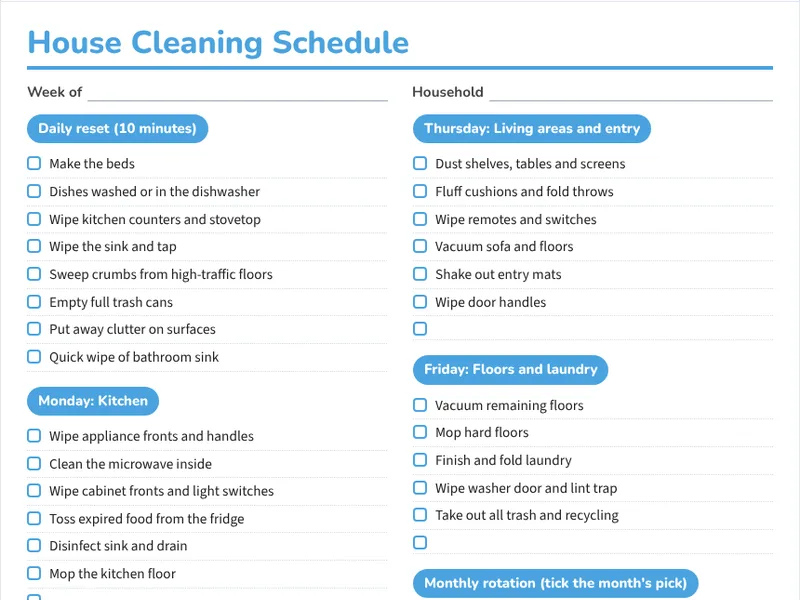 House Cleaning Schedule: Free Printable for Daily, Weekly and Monthly Jobs
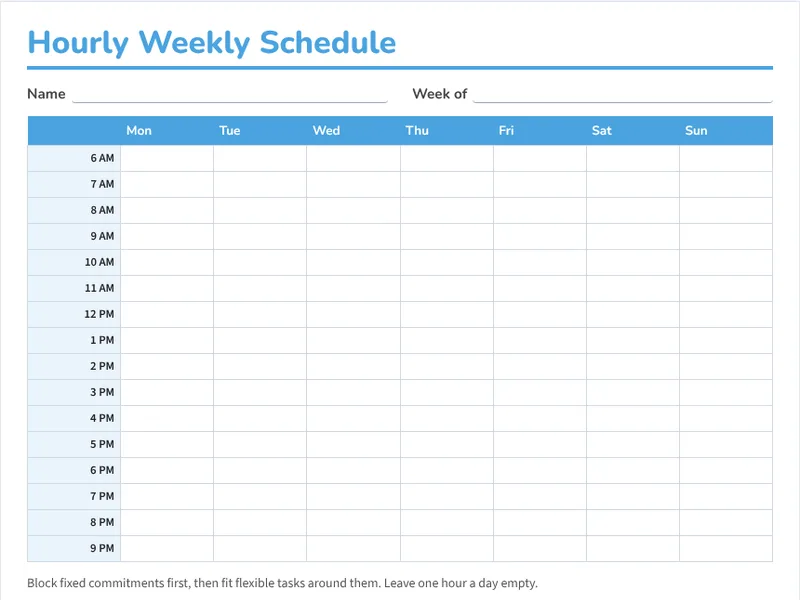 Hourly Schedule Template: Free Printable Weekly Planner
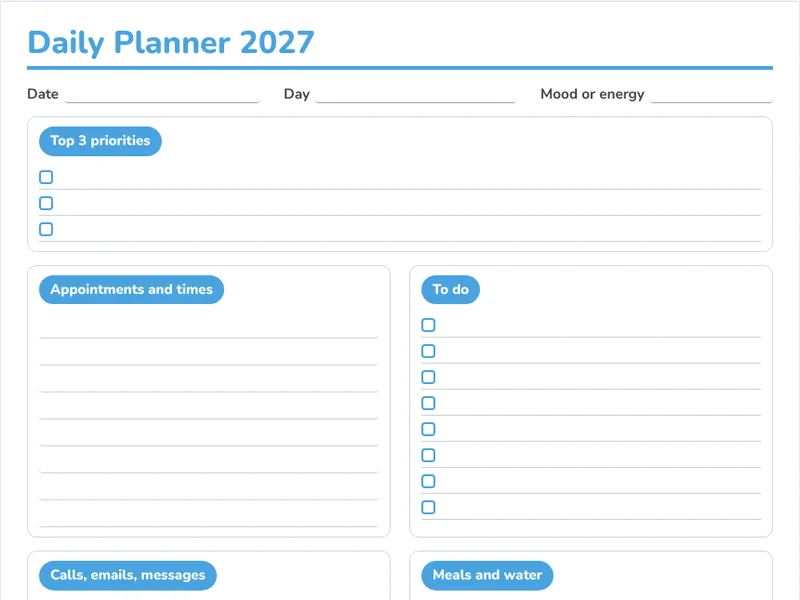 Daily Planner 2027: Free Printable Page for Every Day